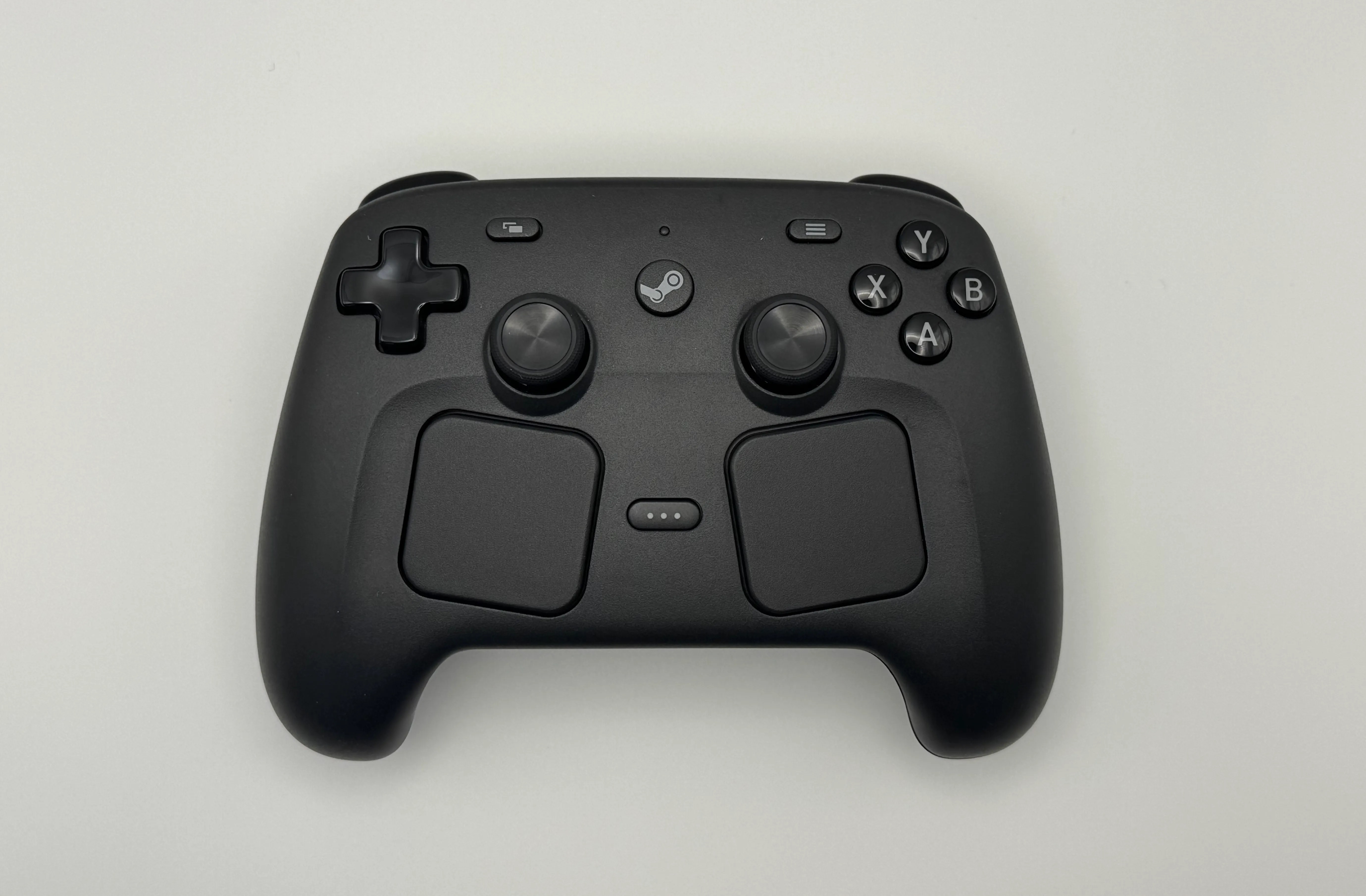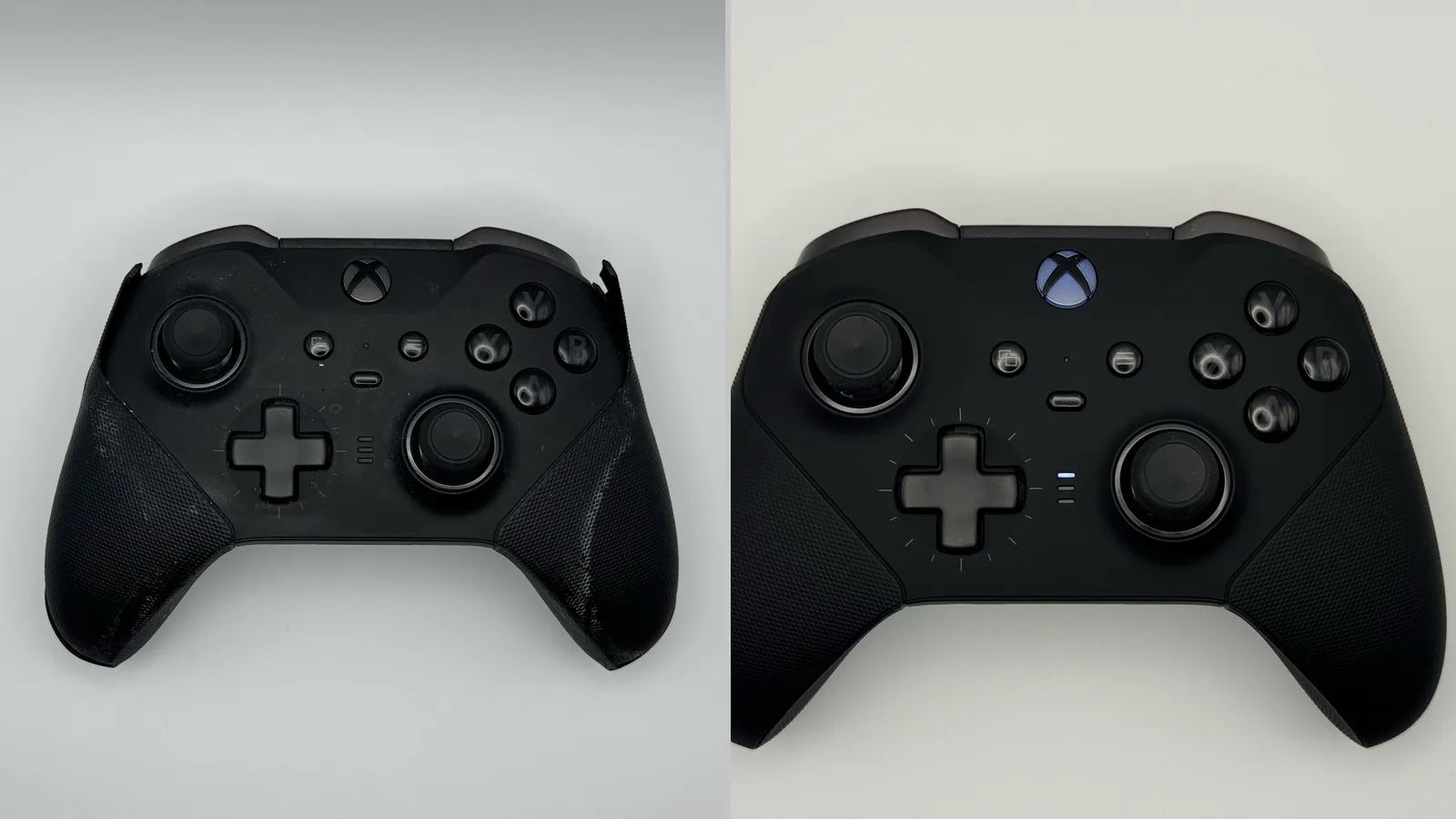
I bought my Xbox Elite Wireless Controller Series 2 in August of 2022. By the time I opened it, it had nearly four years of use behind it.
The controller was already part of why I bought Valve’s new Steam Controller. The rubberized grips were peeling away from the hard plastic underneath, and the rear shell had cracked beneath the right trigger. I was tired of watching an expensive controller slowly fall apart.
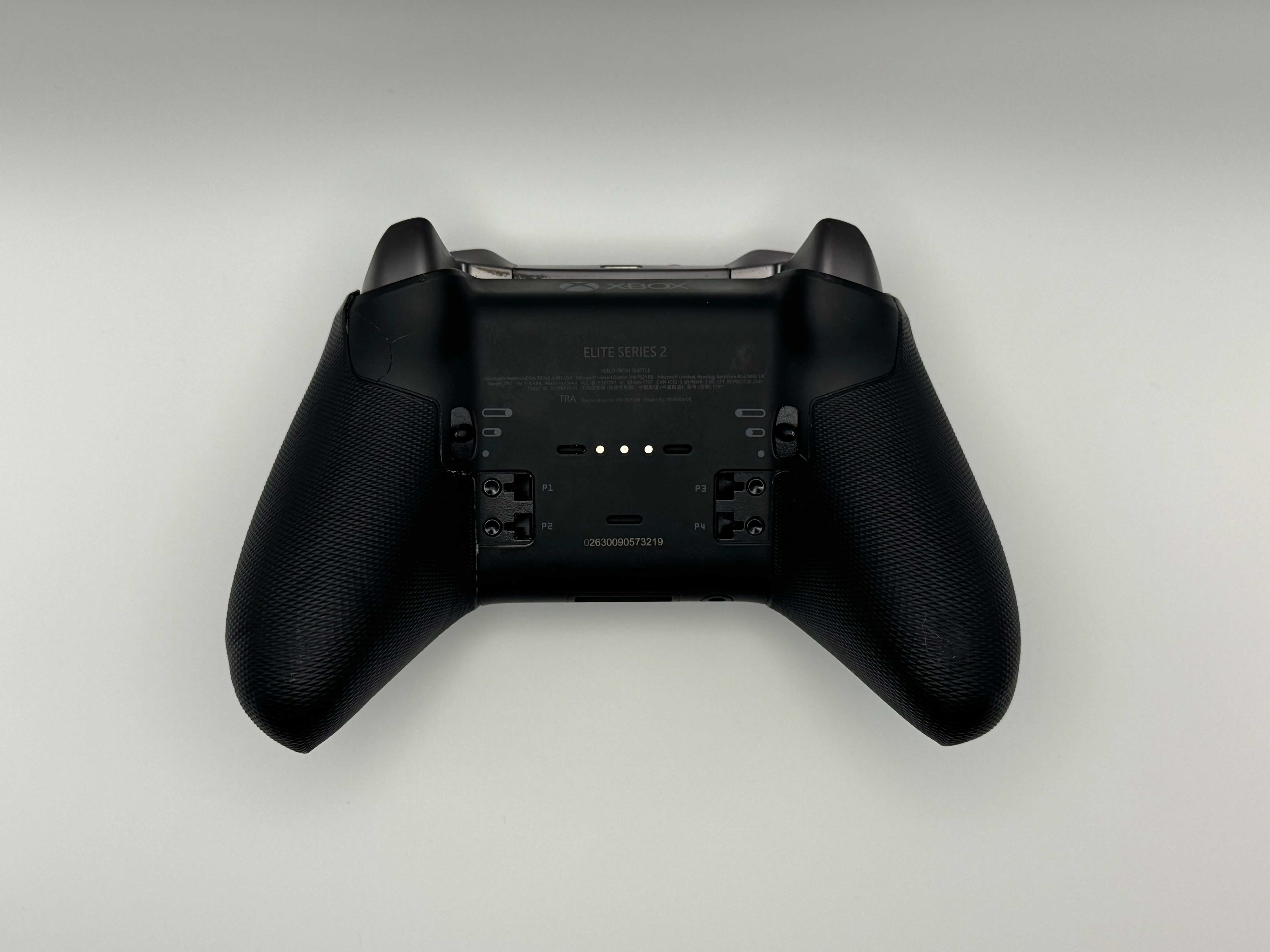
I expected the repair to be about the grips.
It was not.
After opening the controller, I found that the battery was puffing. At that point, the controller stopped being an annoying repair project and became a safety concern.
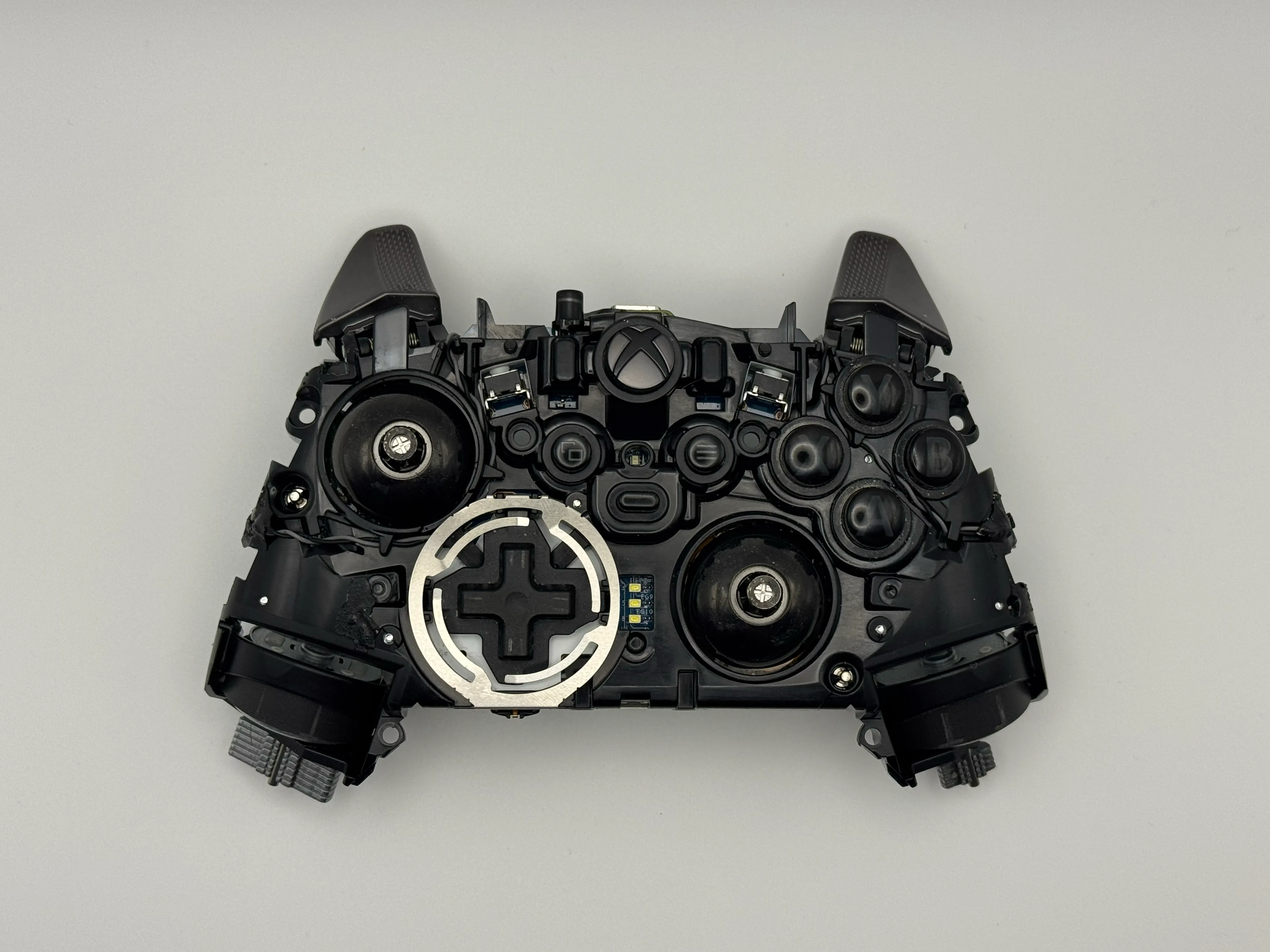
The Battery Was Swollen
The battery inside my Elite Series 2 was visibly swollen after I opened the controller. I did not keep trying to use it or charge it. I called the fire department’s non-emergency line because I was not comfortable handling or storing a damaged lithium-ion battery without getting advice first.
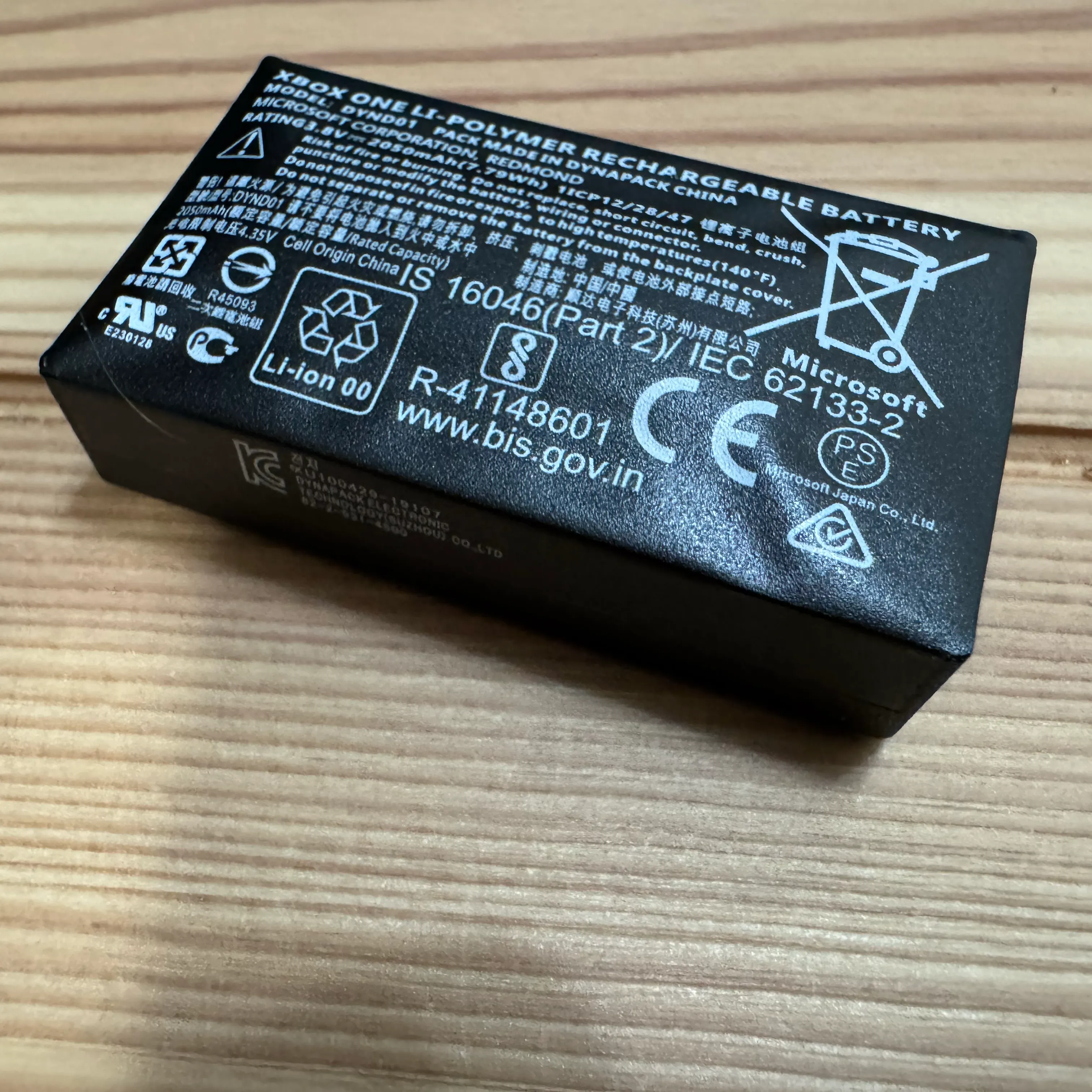
Unfortunately, the timing of this was not very good. My significant other and I were beginning to wind down for the evening and the fire department call center supervisor decided to send a truck to me. After handing the firefighter the metal pan with the battery, he shook it around and told me to submerge it in water. I was not comfortable with that advice, so I did not put the battery in water. iFixit advises against storing a damaged lithium-ion battery in water. I put it in sand in a metal pot until I could take it somewhere equipped to handle disposal.
For general swollen-battery handling and disposal guidance, see iFixit’s What to do with a swollen battery.
That was an unexpected turn for a controller repair. I had opened it because of a worn exterior-material problem, but the failing battery was the more serious issue.
After dealing with the damaged battery, I bought a replacement battery from iFixit and reassembled the controller. This is not a universal battery-replacement guide. If you find a swollen battery in a controller or another device, stop using and charging it and follow local advice for safe handling and disposal.
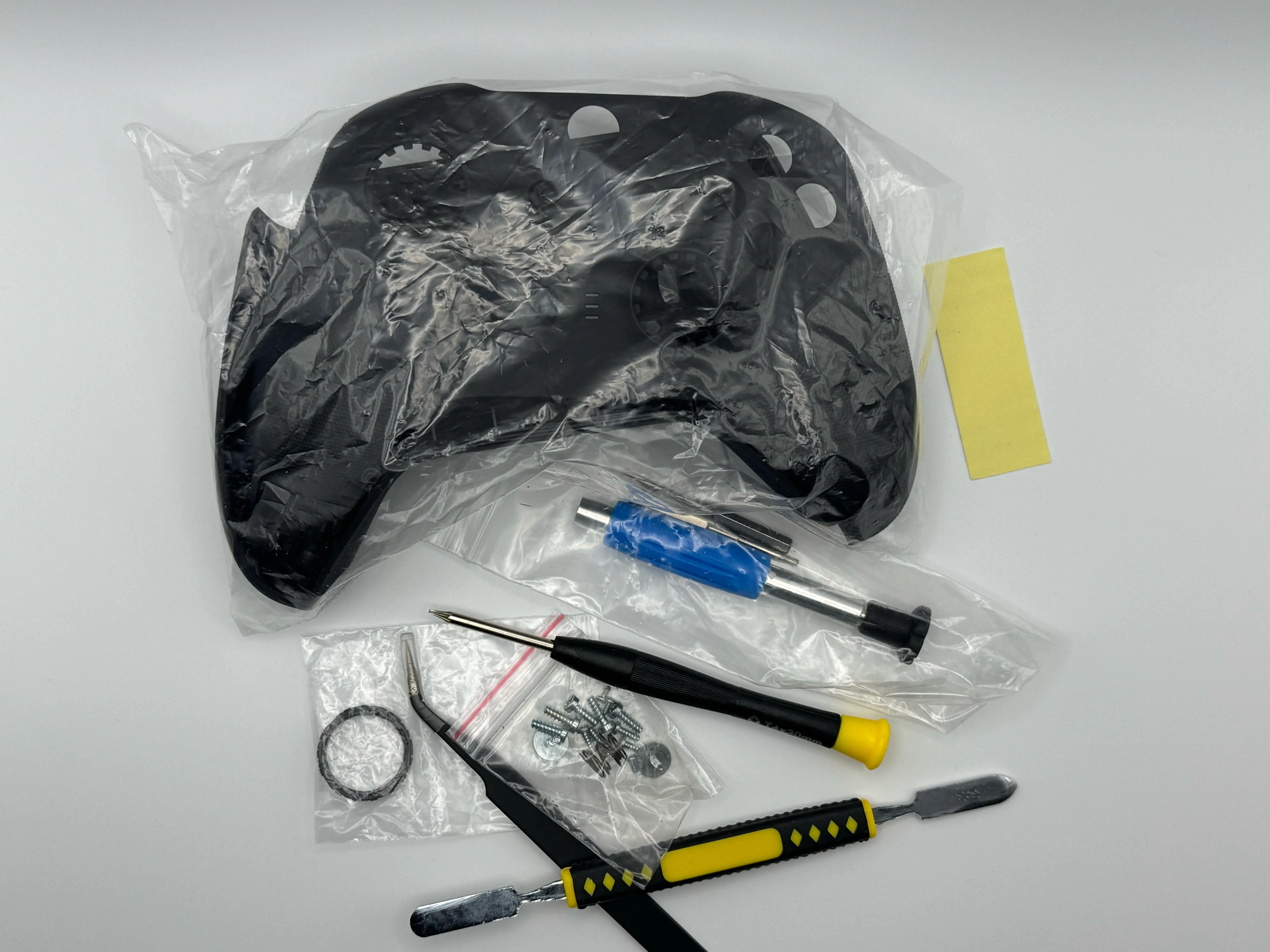
For the cracked housing and peeling grips, I used this front-and-back Elite Series 2 housing shell kit. It included the replacement shells, grip covers, and the tools I used for the repair. I followed the installation video on that product page to disassemble the controller, including removing the battery housing.
I did not need to follow a separate battery guide, but iFixit also publishes an Elite Series 2 battery-replacement guide for readers who prefer written instructions.
The Repair Cost Was Reasonable
My total repair cost was about $70: roughly $35 for the replacement shell kit, plus the replacement battery and associated tax or shipping. If the shell had been the only problem, the repair would have cost about $35.
That made repairing the controller financially reasonable for me. I paid $197.09 after tax for the Elite Series 2, so even the full repair was about 36% of what I originally spent. That comparison is based on what I paid for the parts, not current retail or used-controller prices.
The repair does not guarantee the controller will never develop another issue, but it restored mine for substantially less than replacing it at full MSRP.
Reassembly Was Not the End of It
Once the Elite Series 2 was back together, I wanted to use it with Steam.
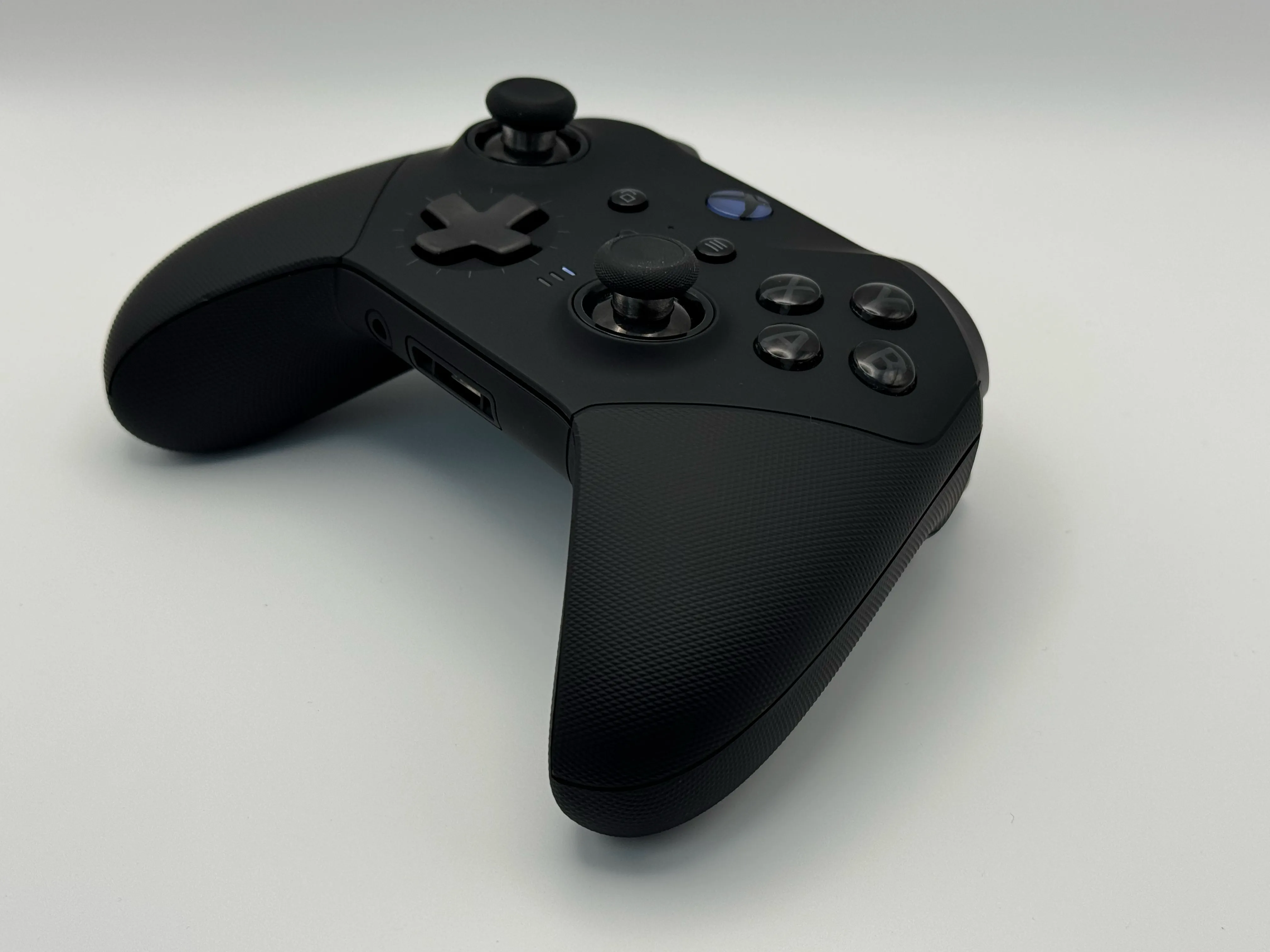
That should have been simple. I connected it through Bluetooth, enabled Steam Input, and expected to start playing.
This is where the Steam Controller’s included USB puck became much more meaningful to me. It works as the wireless transmitter and charger, so the controller setup stayed inside Steam. With the Elite Series 2, Bluetooth was only the start of a longer Windows and Xbox configuration path.
Instead, the controller setup became its own troubleshooting session.
At first, the A button was opening Xbox Game Bar, while B would close it. That made navigating Steam feel broken even though the controller itself was connected.
The fix was buried in Game Bar settings. I had to disable the option that lets the Guide button open Game Bar, then restart my computer before the behavior stopped.
Then the Share Button Did Not Work
After fixing the Game Bar problem, the controller’s Share/Capture button still was not being recognized properly.
To address that, I installed the Xbox Accessories app and updated the controller firmware.
The update was necessary, but the process was aggravating. After it completed, the Share/Capture button was recognized correctly. The app repeatedly prompted me to install the Xbox app and set up Game Services. I did not want either of those things. I wanted to update a controller and play a video game through Steam.
Instead, a basic setup path involved Bluetooth pairing, Steam Input, Xbox Game Bar settings, a restart, Xbox Accessories, a firmware update, and repeated prompts for Microsoft services I was not trying to use.
The Most Annoying Part Was the Software
The swollen battery was the serious problem. Replacing it was understandable: hardware fails, and batteries do not last forever.
What frustrated me was everything that came afterward.
The controller was physically repaired, but getting it to behave normally with Steam required moving through multiple unrelated Windows and Xbox settings. Each fix uncovered another issue. None of it felt like a coherent setup process.
The Elite Series 2 is still a comfortable controller with useful hardware features, but this experience reinforced why I was willing to try the new Steam Controller. Its included USB puck is a major advantage for my PC setup: it handles the wireless connection without sending me through Bluetooth, Xbox Game Bar, Xbox Accessories, and Microsoft service prompts before I can play.
I wanted to spend time playing games, not figuring out why one button was opening Game Bar, another button was closing it, and a third needed a firmware update before Windows could see it properly.
Was Repairing the Elite Series 2 Worth It?
The repair was worth doing because the controller was recoverable after the battery and rear-shell replacements.
The overall experience was still extremely annoying. I started with peeling grips, found a swollen battery, had to handle a replacement, then spent more time than expected navigating Steam Input, Xbox Game Bar, firmware updates, and Microsoft service prompts.
That is the clearest advantage I found in the Steam Controller’s included USB puck. It simplified the connection process massively compared with setting up the Elite Series 2 through Bluetooth. The Elite can work with Steam, but the Steam Controller got me to a usable controller-first setup with fewer layers between turning it on and launching a game.
If your Elite Series 2 has a swollen battery, treat that as the priority. If it works after repair, be prepared for the possibility that getting the controller fully working with Steam may take more time than it should.
For my comparison of the repaired Elite Series 2 with Valve’s newer controller, including why I tried the Steam Controller in the first place, read my Steam Controller 2026 review.